
Joining Your Telehealth Session
If you've never used Zoom before, or you'd just rather know exactly what to expect, here's how it works.
You don't need a Zoom account, and you don't need to pay for anything. If Zoom asks you to sign in, you can skip it, clicking your link is all you need.
Video Directions: https://www.youtube.com/watch?v=QOUwumKCW7M&authuser=0
Before your session
What you'll need
Your Zoom session link (you should have it via google calendar invite)
A computer, tablet, or smartphone
A working camera and microphone
A reliable internet connection
A private place where you can talk openly
Headphones, if they help with privacy
If you're using a phone, computer or tablet for your session, put your it on Do Not Disturb so calls and notifications don't interrupt you.
Zoom System Check
Want to make sure everything works before your first session? You can test your camera, microphone, speakers, and internet connection through Zoom ahead of time.
Follow the prompts to join the test meeting.
Check that your camera, microphone, and speaker or headphones are working.
When you're finished, you can leave the test meeting.
You don't need to create a Zoom account to test your system.
If everything works during the test, you're all set. If something isn't working, don't panic. We can troubleshoot it together when you join your actual session.
Before Your First Session
Give yourself about ten minutes before your first appointment to get set up. After that, joining takes a few seconds.
You'll receive a secure link from me before your session. You should get it via your email with a google calendar invite.
Please don't share your session link with anyone else.
Sessions are held through Zoom using a HIPAA-compliant configuration.
How to Use Zoom
From a Computer
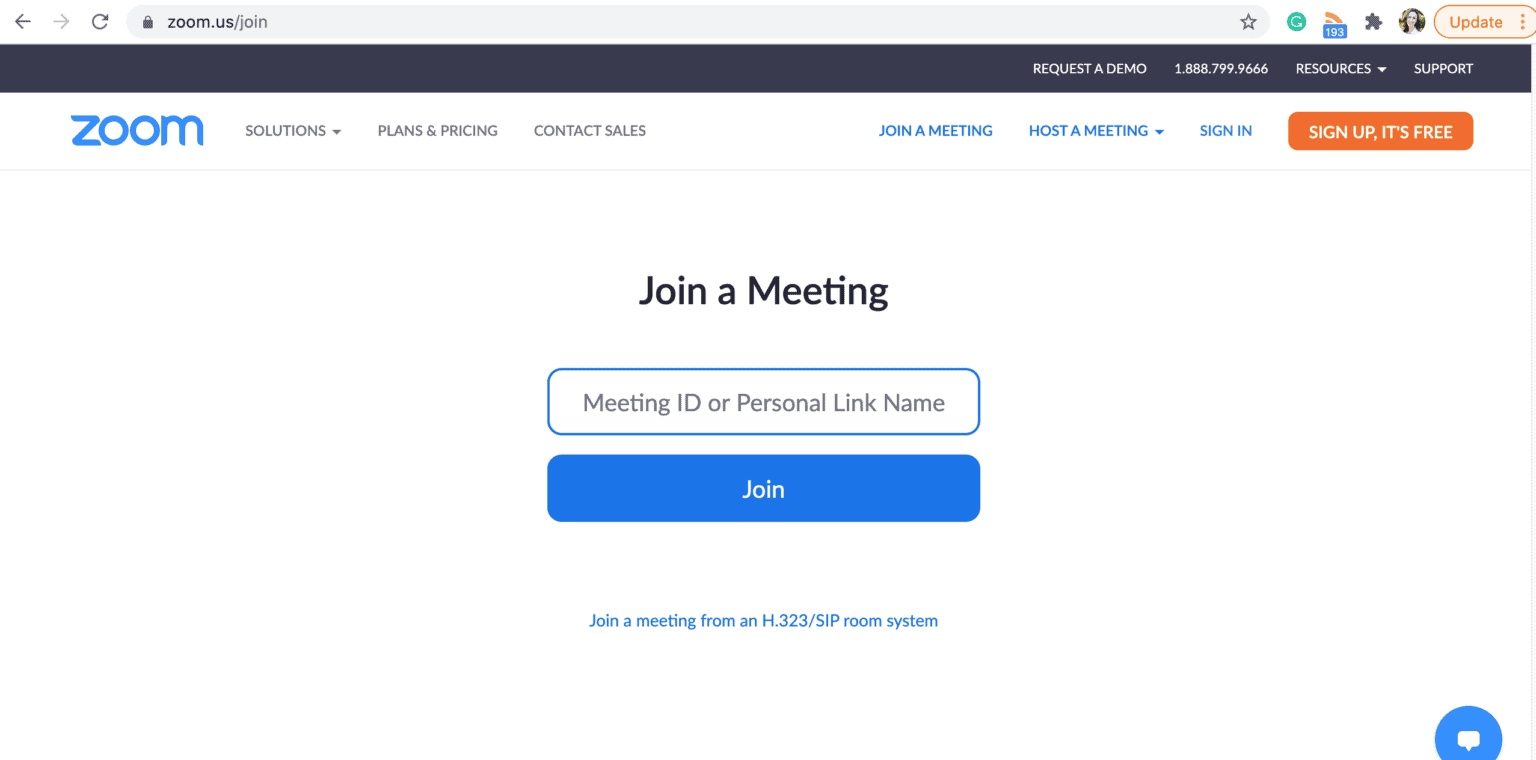
1. Click your session link at your appointment time.
Your browser will open a Zoom page.
2. Choose how you'd like to join.
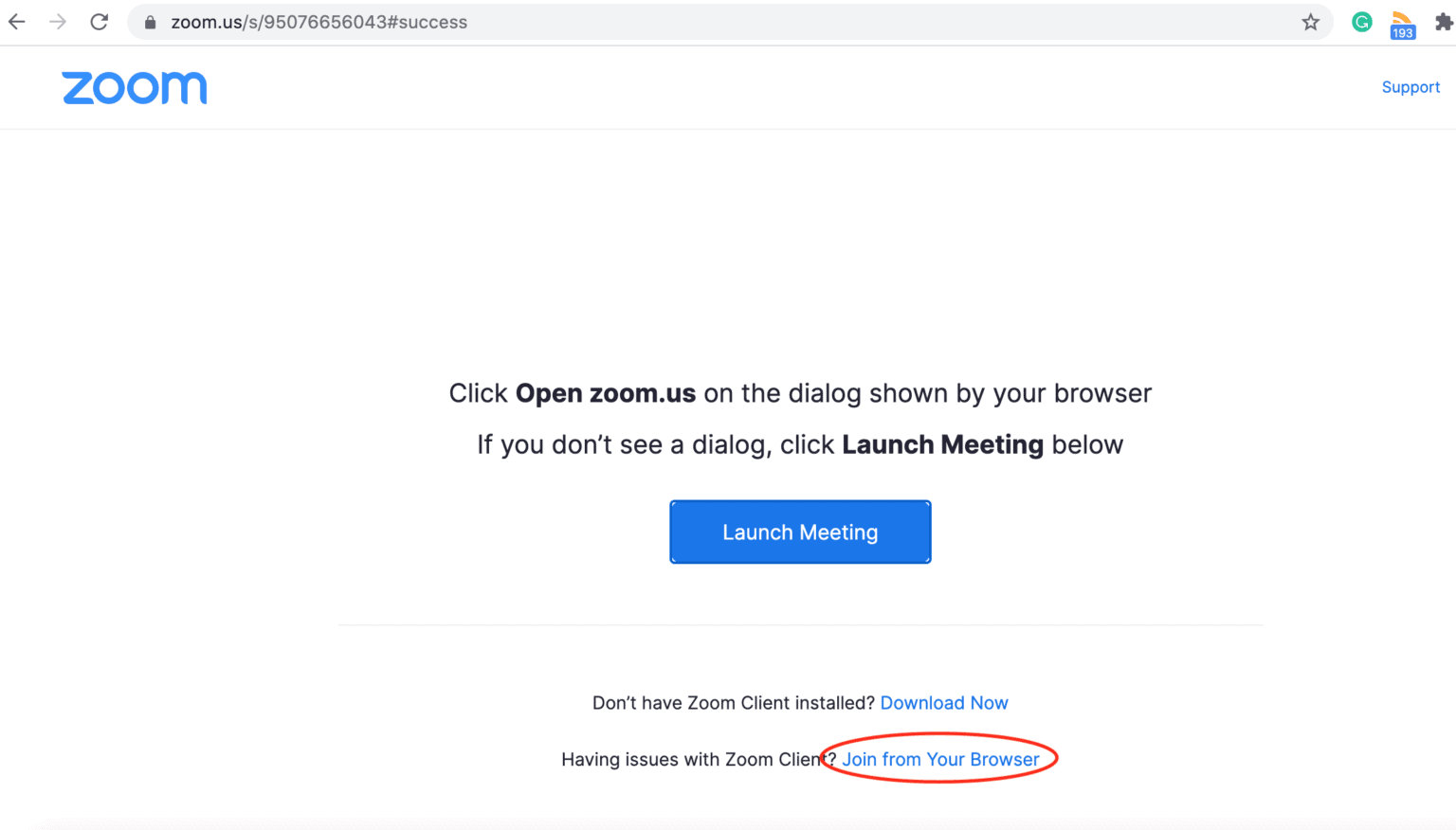
If you already have Zoom installed, your browser may ask whether you want to open Zoom. Choose to open it.
If you don't have Zoom installed, you may be given the option to download it.
You may also see Join from Your Browser. If that option is available, you can use Zoom without downloading the app.
3. Type your name if asked.
You don't need to sign in to a Zoom account.
4. Allow access to your camera and microphone.
Your browser or computer may ask for permission to use your camera and microphone. Choose Allow.
Otherwise, Zoom won't be able to see or hear you.
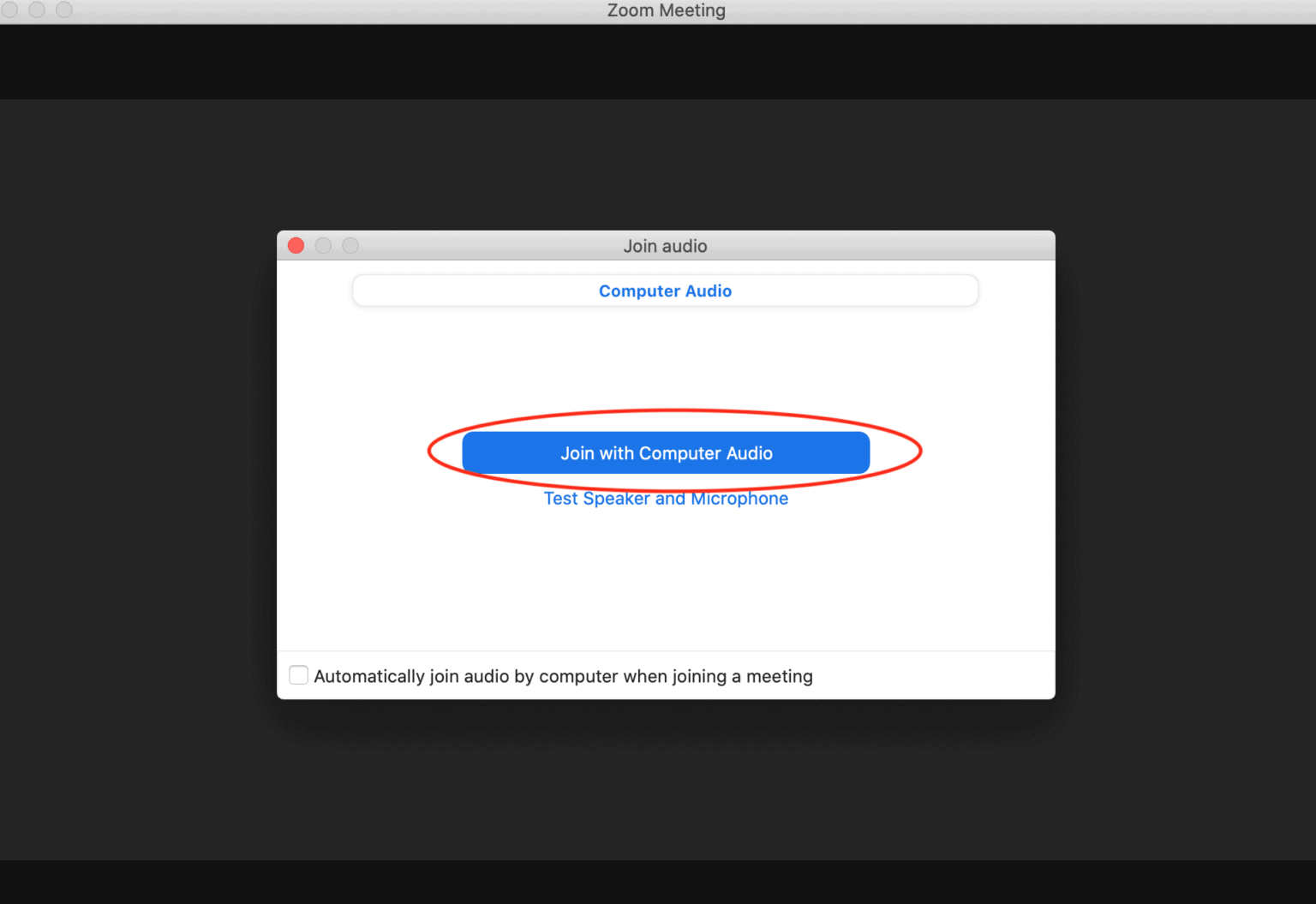
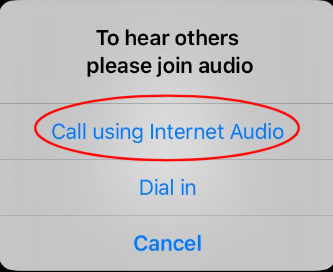
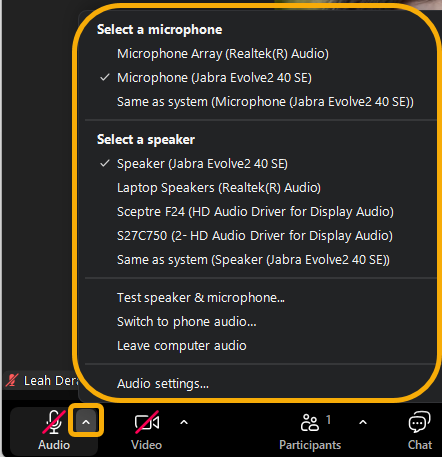
5. Choose your audio option.
When prompted, choose Join with Computer Audio.
If you're using headphones, make sure they're connected before joining.
6. You'll enter the waiting room.
I'll admit you at your appointment time.
If you're a few minutes early, that's where you'll wait. Nothing has gone wrong.
Once You're In
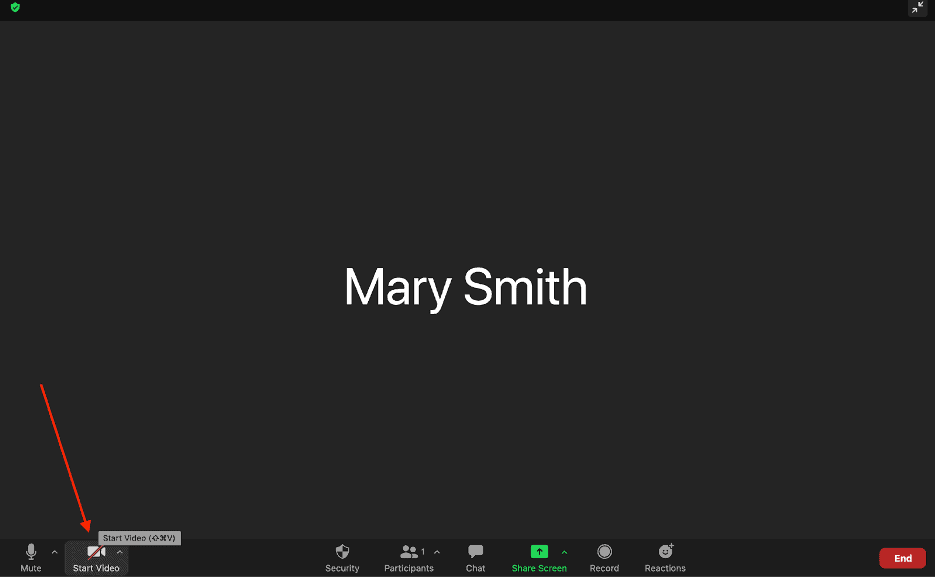
Once you've joined the session, there are only a few things you need to check.
🎤 Microphone: Make sure you're not muted when you want to speak.
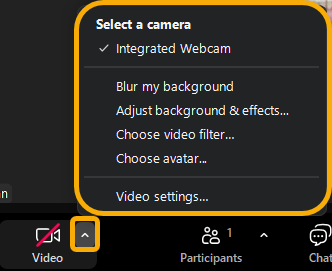
📹 Camera: Make sure your video is on if you'd like me to see you.
🔊 Audio: Make sure you can hear me.
Your microphone and camera controls are usually at the bottom of the Zoom screen.
If there's background noise around you, you can mute yourself when you're not speaking.
If you're in the waiting room, you're in the right place. I'll let you in when it's time for your appointment.
On an Android phone or tablet
1. Download Zoom Workplace before your first session.
You can download it for free from the Google Play Store.
2. At your appointment time, tap your session link.
Your device should open the Zoom app automatically.
3. Type your name if asked.
You don't need to sign in to a Zoom account.
4. Allow camera and microphone access.
Tap Allow when Android asks for permission.
5. Join with video and audio.
Tap Join with Video, then Call using Internet Audio.
6. You'll enter the waiting room.
I'll admit you at your appointment time.
If you're a few minutes early, that's where you'll wait.
If you'd rather not install the app
Tap your session link and look for Join from Your Browser.
The browser option may work, although the app is generally more reliable on a mobile device.
If your video or audio doesn't work
Go to:
Settings → Apps → Zoom → Permissions
Make sure Camera and Microphone are allowed.
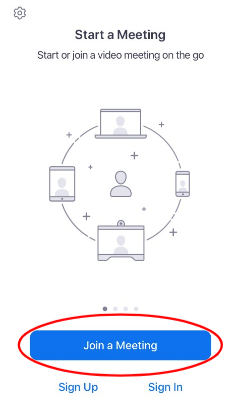
On an iPhone or iPad
1. Download Zoom Workplace before your first session.
You can download it for free from the App Store.
2. At your appointment time, tap your session link.
Your device should open the Zoom app automatically.
3. Type your name if asked.
You don't need to sign in to a Zoom account.
4. Allow camera and microphone access.
Tap Allow when your iPhone or iPad asks for permission.
5. Join with video and audio.
Tap Join with Video, then Call using Internet Audio. Depending on your device or version of Zoom, this may appear as Wi-Fi or Cellular Data.
6. You'll enter the waiting room.
I'll admit you at your appointment time.
If you're a few minutes early, that's where you'll wait.
If you'd rather not install the app
Tap your session link and look for Join from Your Browser.
The browser option may work, although the app is generally more reliable on a mobile device.
If your video or audio doesn't work
Go to your iPhone or iPad's:
Settings → Zoom
Make sure Camera and Microphone are switched on.
If Something Goes Wrong
Technology occasionally decides to have a personality of its own. We'll deal with it.
-
Close other apps and browser tabs.
If you're on Wi-Fi, moving closer to the router helps.
If it's still rough, turning your own video off often stabilizes the audio, and we can do the session that way.
-
Check that your microphone and speaker are turned on and that you're connected to the correct audio source.
If you're using headphones, make sure they're connected.
If you're still having trouble, we'll troubleshoot it together.
-
Click your session link again. It works more than once.
If you can't get back in within a few minutes, I'll call you at the phone number on file.
-
Call or text me at (952) 314-8364 and we'll sort it out or move to phone for that session.
Technology problems are difficult and not a waste of your session.
We'll work it out, and it doesn't count against your time in any way that should worry you.
Setting yourself up
Somewhere private. A room with a door that closes is ideal. If that isn't available, headphones help a lot, they keep my voice from carrying into the room. Some people take sessions in a parked car, which is a completely legitimate solution. Just make sure you're parked somewhere safe and private.
Somewhere you can be honest. This matters more than the room being quiet. This matters more than the room being quiet. If there's someone in the next room you'd be editing yourself around, it's worth finding somewhere else if you can. You don't need a perfect therapy space. You just need enough privacy to talk openly.
Your phone nearby. Keep your phone nearby in case we lose the connection and I need to reach you. If you're joining from a computer or tablet, put your phone on Do Not Disturb before we begin so calls and notifications don't interrupt your session.
A little light helps. Try to sit somewhere your face is easy to see. Natural light or a lamp in front of you usually works better than having a bright window directly behind you.
Whatever helps you settle. Water, tea, tissues, a blanket, a journal, a fidget. Wear something comfortable. You're allowed to be a person in therapy, not a perfectly composed video-call participant.
A few minutes afterward. If you can, don't schedule something immediately after. Therapy can bring things up, and having a little time before going back into your day can make a difference. You don't have to do anything particularly productive with that time. A quiet moment, a walk, a snack, or simply sitting for a few minutes is enough.
A note on privacy
I conduct telehealth sessions from a private office with the door closed and take reasonable steps to protect your privacy.
I won't record our sessions. If you ever want to record one for your own use, talk to me about it first, it's not automatically a no, but it's worth thinking through together. Please don't record a session without discussing it.
Still have questions?
You don't need to figure out the technology, or therapy, perfectly before you get started.
If you have questions about telehealth, therapy, or getting started, you're welcome to reach out.